Managing AI Assistance Features in Google Docs
For users looking to streamline their Google Docs experience, understanding how to adjust or disable AI writing suggestions is key.
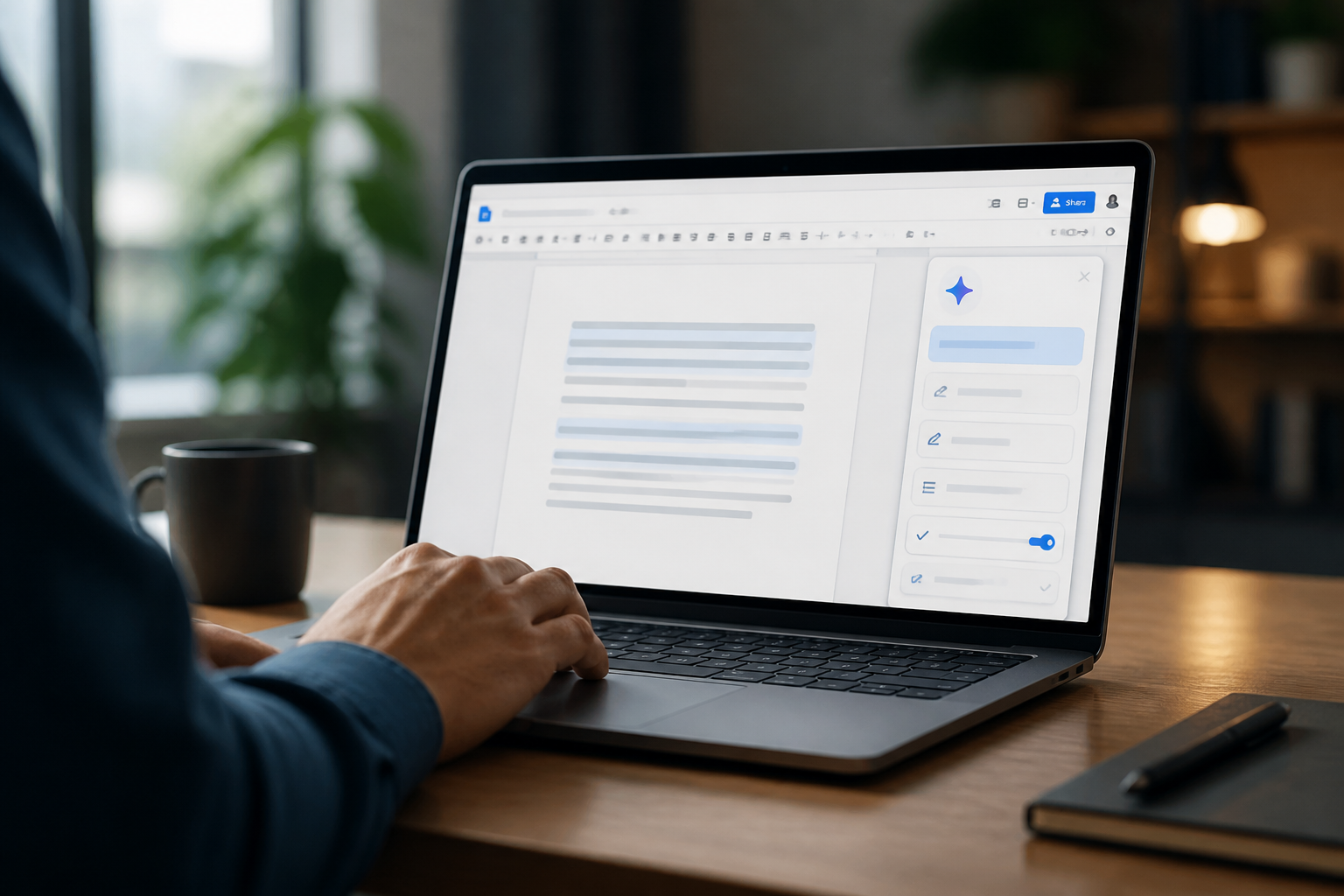
Google Docs has integrated AI-powered writing assistance, notably through its "Help me write" feature, which utilizes the Gemini model. While designed to enhance document creation, some users may prefer to manage or disable these AI suggestions for various reasons, including personal workflow preferences or a desire for an uncluttered interface.
Disabling the "Help me write" Pop-up
The most prominent AI intervention in Google Docs is often the "Help me write" pop-up. This feature appears contextually, aiming to assist with drafting content. To prevent these suggestions from appearing, users typically need to adjust their settings within the Google Workspace environment.
For Individual Documents
Within an open Google Doc, a common method to temporarily dismiss or manage the AI prompt is by interacting directly with the pop-up itself. Options often include a "Don't show again" selection or a similar dismissive action that can reduce its frequency for that specific document or session.
Account-Wide Adjustments
For a more comprehensive approach, users can delve into their broader Google account or Google Workspace settings. These settings govern how AI features interact across different Google services. While specific navigation paths may vary slightly with updates, general areas to explore include:
- Labs or Experimental Features: Google often introduces new functionalities, including AI tools, as "Labs" or experimental features. Disabling these can prevent pre-release or optional AI assistance from appearing.
- Privacy Settings: Within Google's privacy dashboard, there may be options related to data usage for personalizing experiences and powering AI features. Reviewing and adjusting these can impact AI visibility.
- Google Workspace Admin Console: For users within an organizational Google Workspace, administrators have granular control over which features are enabled or disabled for their domain. If you are an administrator, checking the AI settings within the Admin Console can manage this for all users under your purview.
Understanding the Impact of Disabling AI
Turning off AI writing assistance primarily affects the proactive suggestions and automated content generation within Google Docs. It does not typically impact underlying functionalities of Google Docs that may leverage AI discreetly, such as improved search capabilities or smart spell-checking, which operate in the background to enhance core editor performance.
Re-enabling AI Features
Should a user decide to reintroduce AI writing assistance, the process generally mirrors the disabling steps, but in reverse. Reverting settings in the document, account, or Workspace administrative panels will restore the "Help me write" functionality. Google regularly updates its interface and feature offerings, so users may find minor variations in exact menu labels or button placements over time. Consulting Google's official support documentation for the most current instructions is always recommended.
Source: How to turn off AI in your Google Docs — TechCrunch. This article was rewritten by AI; please visit the original publisher for the source reporting.
Comments (0)
Sign in to leave a comment.